Search This Blog

May 28, 2015

Fixed the presence unknown issue in MS Outlook 2010 after the upgrade from MS Office Communicator 2007 to MS Lync 2013

This week, our IT department was doing the upgrade from Microsoft Office Communicator 2007 R2 to Microsoft Lync 2013. After the upgrade, I noticed that the presence status in Microsoft Outlook 2010 showed “Unknown”.
After looking into this interesting issue, I noticed that upgrade means install because Microsoft Lync and Microsoft Office communicator appear in Programs and Features. But Office Communicator 2007 is turned off in Startup program.
How to fix the unknown status issue?
In Search dialog box, enter regedit.
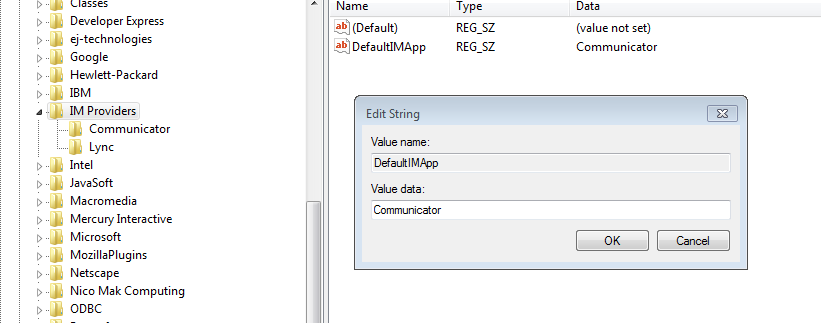
Go to HKEY_CURRENT_USER\Software\IM Providers.
Click DefaultIMApp and it shows Communicator. Change it to Lync.

Go to HKEY_CURRENT_USER\Software\IM Providers\Lync.
Add a new DWORD (32-bit) value and name is UpAndRunning. Set Value data = 2 (Hexadecimal).


Go to HKEY_CURRENT_USER\Software\IM Providers\Communicator. In UpAndRunning, set Value data = 0 (Hexadecimal). (Note: this is optional if your office communicator is not launched automatically)

After rebooting the laptop, the presence status appears in MS Outlook 2010.

May 22, 2015

License issue: don’t use “Testers” field in MTM.

2 weeks ago my manager talked to me that we created so many test cases for Release 1, but all “Testers” are showing your name!  I replied: That’s because "AssignedTo" and "Testers" are different.  I use “Assigned to” field in TFS and MTM all the time.
When viewing test cases in TFS, we only see “AssignedTo “as follows:


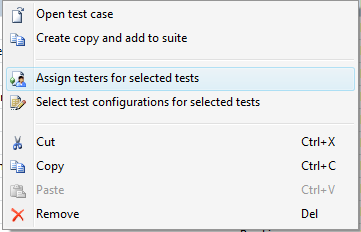
Can you change the name in “Testers” field in TFS? The answer is NO in TFS because there is no “Testers” field . But you can change it in MTM. Click one test case, right click and choose “assign testers to select for selected tests”

You can also change it in TFS Web dashboard once you have the license to see the test suites inside the Test tab. But I heard it costs more than $ 2,000 per person. Is it worth it?  If you don’t have the license of installing MTM, you can’t change “Testers” either.


In the project team, only testers care about test case creation and execution. Who cares about how many test suites you have in Test tab? They only care about the tasks assigned to testers in each sprint.

From my experience, testers can sit down with business analysts and developers to go through test cases to see if there is something missing, but they are not interested in testers’ work. The project team only cares about the final test result.

Due to license issue, not all people in the project team can view test suites inside the “Test” tab in TFS Web dashboard. If the budget is limited in your project team, I don’t see any value using “Testers” field in this case.

May 21, 2015

Fixe the issue in Parasoft SOAtest: Message: Could not find endpoint in client configuration file

In SOATest, we have the configuration file called Environments.env where we store environment variables. When running my BVTs today, some of them failed.
I notice that our team added a new path (/BusinessService ) in the URL. After updating it in Environments.env and running BVTs again, I saw the following error message. Closing and reopening SOAtest still could not solve the issue.
Could not find endpoint in client configuration file: WCF URL

After looking into this interesting issue, I notice “Constrain request to WSDL” in some tests was checked. After unchecking it and running BVTs again, all tests passed.

February 24, 2015

Parasoft SOAtest: Fixed the issue of line feed character ( )

Today one test failed in SOAtest due to feed character (&#10). In SOAtest, if I get customer data from SQL server , the data appears in Result As XML -> Edit and it shows the following data.
<LastName>Lin&#10</LastName>

&#10 is line feed character and it is not visible in SQL Server. I can use LEN(LAST_ NAME) to know how many characters in this field. 

How to avoid the issue of line feed character and carriage return using SQL query? After using the following one, the test passed in SOAtest. 
RTRIM(replace(replace(LAST_NAME,char(10),' '),char(13),' ')) LastName

January 15, 2015

Parasoft SOAtest 9.7 doesn’t support Common Table Expression (CTE) in SQL Server 2008 R2

If you have the following SQL query that uses Common Table Expression (CTE), you will see the error after trying to populate the data in SOAtest.
  
DECLARE @PolicyName varchar(20)='%Glucose%'
; WITH CTE as
(
  SELECT field1, field2
  from Policy PO  WITH(NOLOCK)
  WHERE field1 like @PolicyName
)

The following error shows up in XML data bank after running the test.

com.microsoft.sqlserver.jdbc.SQLServerException: Must declare the scalar variable "@PolicyName".

When I see this error, I feel so surprised because this SQL query is always working in SQL Server 2008 R2, but SOAtest complains about it using CTE.

How to solve this issue?  We need to declare this variable in SOAtest.

  1. Double Click Scenario
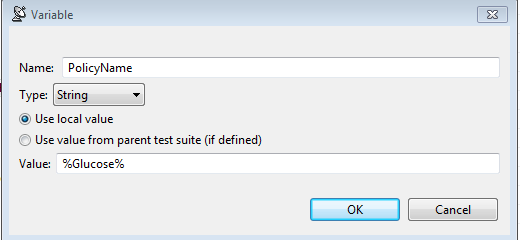
  2. Click Variables and add PolicyName like this

    3.Modify the following SQL query

; WITH CTE as
(
  SELECT field1, field2
  from Policy PO  WITH(NOLOCK)
  WHERE field1 like '${PolicyName}’
)


After running the test, the variable will be passed to SQL query in CTE and the test will pass without any issue.

November 26, 2014

Fixed the X.509 Certificate issue in WCF Test Client -The client certificate is not provided. Specify a client certificate in ClientCredentials

In our current project, we implemented X.509 Certificates. In order to test WCF methods, we needed to install X.509 certificates in our laptop. But when using SOAtest to run the tests or using WCF test client to invoke all methods, the following error message appeared:

The client certificate is not provided. Specify a client certificate in ClientCredentials.


How do we fix this issue in WCF Test Client? I assume you have the console app with the X.509 Cert configuration in app.config and the unit tests are working. 

Here are the steps to configure the WCF test client.

  1. Open WCF Test Client.
  2. Go to C:\Users\ray\AppData\Local\Temp\Test Client Projects\12.0.
  3. Open Client.dll.config.
  4. Copy all the contents of app.config into Client.dll.config and click save.
  5. WCF test client will be refreshed and make sure you don’t see any error in Client.dll.config (Modify Contract name if required).
  6. All WCF methods appear.
Input the parameters to invoke one WCF method and it is working without any certificate issue.

Fixed the vsmdi issue : Root element is missing in Visual Studio 2013

Today I used my .vsmdi in Visual Studio 2013 to run unit tests, and I got the following error.

Error loading C:\TestProject\Test\Test.vsmdi: Root element is missing.

After looking into this issue, for some reason, it was empty in the .vsmdi file.

After adding the following elements in vsmdi and running the tests again, the error was going away.

November 24, 2014

Fixed the WCF issue: When the third digit of Milliseconds is 0, it doesn’t appear In WCF response format

Today one test failed in SOAtest. After looking into this interesting issue, we noticed that it was related to Milliseconds with 2 or 3 digits in WCF response format.

  2014-11-14T16:12:01.107

  2014-11-05T12:01:07.43

In DB, when using the SQL query of RTRIM(CONVERT(char(25),FieldName,127)), I could see Milliseconds with 3 digits all the time:

2014-11-14T16:12:01.107

2014-11-05T12:01:07.430


It means in WCF response format, when the third digit is 0, it is ignored and does not appear. It makes our verification test failed.

The quick workaround to fix this issue is to use Case When in SQL query.

After adding this condition in SQL query, all tests in SOAtest pass without any issue.

(CASE WHEN (CONVERT(char(25),FieldName,127) LIKE '%0')  
      THEN RTRIM(CONVERT(char(22), FieldName,127))
      ELSE RTRIM(CONVERT(char(25), FieldName,127))
 ENDAS RequestDate


November 3, 2014

Fixed the battery issue: 0% available (plugged in, not charging)

Last night I noticed that my personal laptop had the battery issue. It showed 0% available (plugged in, not charging). When it was plugged out, it shut down immediately.

After looking into this interesting issue, here are my ways to fix it.

Go to Device Manager-> Uninstall Microsoft ACPI-Compliant Control Method Battery.


Shut down the laptop. Take out the battery about 10-20 seconds. Put the battery back.


Turn on the laptop, go to Device Manager and in Action tab, click Scan for hardware changes and you are all set. 

October 30, 2014

Parasoft SOAtest: Fixed the issue of WCF: Content Type application/soap+xml; charset=utf-8 was not supported.

Today we had the new deployment to Test Environment. After the deployment, running tests via SOAtest showed the following error.

Message: Content Type application/soap+xml; charset=utf-8 was not supported by service http://xxxxxxxx.svc.  The client and service bindings may be mismatched.

Since we didn’t have any change in data contract in WCF, I needed to know what caused this issue. I tried the following ways.

Updated WSDL : the error still appeared.

Service Account: this one had the issue. After we fixed it, the error still appeared.

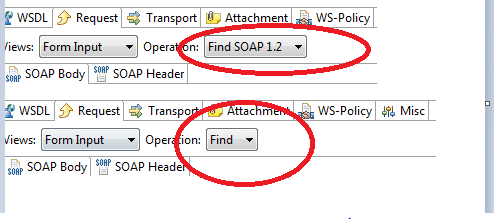
I  added one SOAP Client and added the URL. This time I got the different SOAP version. It just showed “Find” , not Find SOAP 1.2.  That explained why I saw the error message above.


Our Developer noticed that Bindings section was missing in web.config compared to the last build. After adding it and deploying to Test environment again, the error message above was gone.