Search This Blog

Showing posts with label Adobe. Show all posts

May 24, 2013

Fixed the issue: Background Color in Different Browsers

My wife is the graphic designer. 2 days ago, she told me to take a look at her company website after she updated it.

The interesting part was that when I used chrome to view it, the color was fluorescent green as follows: 


When she used iPhone 5 to view it, it was the same as above.

When she used IE9 and Safari, the color is lime green and it is the expected result.  
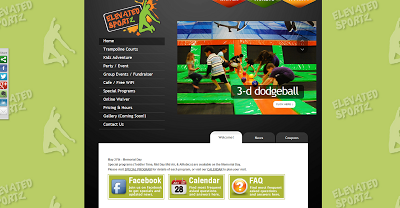


I talked to her: is this image a JPG file when you design it in Adobe Photoshop? She said: Yes.

After looking into this issue, she changed JPG to PNG and updated the site.  It works the same in different browsers. 

July 9, 2009

IE8: this tab has been recovered

Today I used my VPC (Windows XP 3, latest windows update, IE8, clean machine) to test one site in the company, and I found IE8 sometimes showed "this tab has been recovered" and the page redirected to the error URL.

Besides, Compatibility View Settings of IE 8 was not helpful for me to solve this issue. When I went to programs->accessories->system tools-> Internet Explorer 8 (no adds-on), launched this Internet Explorer 8 (no adds-on) and pasted our test site, I could see IE8 running adds-ons disabled.

When I disabled Shockware flash object (adobe 2006 version) in IE8 , the page looked pretty well. But the page still gave me the hint to enable this add-on. If I enabled this add-on, the issue showed up again. It means that there is something wrong with add-ons and IE8.

Next time if you see this issue, try to disable add-ons . Your issue should be resolved.

June 18, 2009

"Document cannot be printed" is fixed by installing Adobe Reader 9

Today I tried to print my PDF document in the office, it didn’t work and it showed “Document cannot be printed”. I even tried print as images and it still didn’t work.

I found it should be an issue of Adobe Reader 8. Therefore, I installed Adobe Reader 9 directly. After installing Adobe Reader 9 and restarting my laptop, I printed my PDF document successfully.

Next time if you see the error message -Document cannot be printed, just install Adobe Reader 9. It should work.

October 8, 2007

Using Virtual PC to run Adobe products on Windows Vista

Christine and I have an idea of buying a PC to run Windows Vista or Windows Server 2008. She also wants to learn Adobe products on Windows Vista. When I told her yesterday that only 3 Adobe products can support Windows Vista, she felt so disappointed.

“Don’t worry about it,” I said. We can have 2 ways to do it.

One way is to install Adobe products on host PC with Windows XP and install Windows Vista on Virtual PC. If you want to use Windows Vista, just connect to that Virtual PC to have fun.


The other one is to use Windows Vista as the host PC and use MS Virtual PC to create many different PCs with different Adobe products. For example, if you want to learn Adobe Indesign, just connect to that machine with that software.

Now that Adobe is trying their best to let their products support Windows Vista, at least I can think of 2 ways now.

But when can all of the Adobe Products support Windows Vista? I think it should take a long time.


Other Articles:
Use Microsoft Virtual PC 2007 as my test machine

July 12, 2007

Comments on installation of Adobe Indesign and Illustrator

When I installed Adobe Indesign CS3 and Illustrator CS3 in my Notebook some days ago, I found installing 2 products is the same, but I need to make some comments now.
When I inserted the CD in my CD ROM and the program was launched automatically. It initialized my installation environment. After that, I only followed its steps. The installation was finished! Nothing happened.

But Adobe forgot one fact: what if users don’t want to install?
After CD initializes the installation environment, you can’t find the “cancel” key to cancel the installation. Only you can do is to use task manager to stop the installation. Next time if you insert the CD again, you will be told that please insert CD in your CD-ROM, but your CD is already there.

How do you solve the problem?

If you go to control panel, click “add or remove Programs’ and uninstall Adobe Indesign / Illustrator, you will get the error. You still can’t install it later.

Only you can do is to insert the CD again, and then you can try to remove the components in the later installation screen and uninstall it. After that, you can try to reinstall it! The problem will be solved!

Do you think Adobe provides a good user experience? I don’t believe so!