Search This Blog

Showing posts with label TFS. Show all posts

May 28, 2015

TFS 2013: Querying test cases with 2 Tags via OR condition is not working

We create so many test cases. In order to organize them nicely, we add “Tags” in each test case in TFS web dashboard. (Note: I don’t have permission to add tags in MTM, but I do have permission to add tags in TFS web dashboard)
When querying test cases with 2 Tags using OR condition in TFS 2013, I can’t believe it is not working. The query is pending forever and never gets the result back. It is not working in TFS Web dashboard, either.

When querying in MTM 2013 using the same condition, it shows the following error. 

I would say querying 1 tag is always working, but querying test cases with 2 Tags via OR condition is not working in TFS , TFS web dashboard and MTM. It is the known issue after I filed a bug to Microsoft Connect.

May 22, 2015

License issue: don’t use “Testers” field in MTM.

2 weeks ago my manager talked to me that we created so many test cases for Release 1, but all “Testers” are showing your name!  I replied: That’s because "AssignedTo" and "Testers" are different.  I use “Assigned to” field in TFS and MTM all the time.
When viewing test cases in TFS, we only see “AssignedTo “as follows:


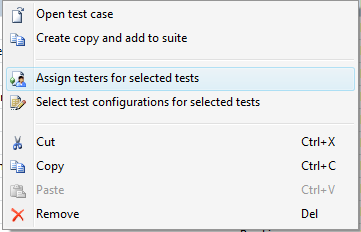
Can you change the name in “Testers” field in TFS? The answer is NO in TFS because there is no “Testers” field . But you can change it in MTM. Click one test case, right click and choose “assign testers to select for selected tests”

You can also change it in TFS Web dashboard once you have the license to see the test suites inside the Test tab. But I heard it costs more than $ 2,000 per person. Is it worth it?  If you don’t have the license of installing MTM, you can’t change “Testers” either.


In the project team, only testers care about test case creation and execution. Who cares about how many test suites you have in Test tab? They only care about the tasks assigned to testers in each sprint.

From my experience, testers can sit down with business analysts and developers to go through test cases to see if there is something missing, but they are not interested in testers’ work. The project team only cares about the final test result.

Due to license issue, not all people in the project team can view test suites inside the “Test” tab in TFS Web dashboard. If the budget is limited in your project team, I don’t see any value using “Testers” field in this case.

April 18, 2014

Fixed the issue: Could not start build: You are not authorized to access

This morning, our team members could not queue a new build successfully. We got the following error message. But we can still hit the following URL successfully.


Go to security setting in TFS 2013 Dashboard  and I don’t see any issue at all.

After logging to build machine and restarting the related build services, I got the logon failure .It means the password of TFS build account was expired.

This error message “You are not authorized to access” is really confusing and Microsoft needs to provide the better error message to handle this scenario.

After updating the new password of TFS build account , queuing a new build is always successful. 

April 1, 2014

TFS 2013 Dashboard: Users can’t export work items to MS Excel ( bad design)

Today one colleague would like to export work items to MS Excel in TFS 2013 dashboard and he could not find it. I could not find it, either. It was working in TFS 2010 web access. I only see one option: Send query as an email. 


After posting a question in MSDN forum, I finally notice this feature was removed in TFS 2012.

The company pays so much money to let users use TFS 2013 enterprise version and finally they can’t use the basic function of exporting work items to MS Excel.  What should they do?

I would say it is bad design and not user friendly. 

February 13, 2014

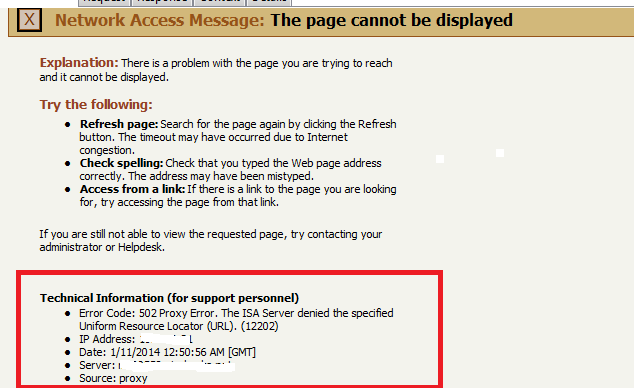
Fixed the issue: Some tests failed in TFS 2013 build due to the Error Code: 502 Proxy Error: The ISA Server denied the specified Uniform Resource Locator

We just upgraded from TFS 2010 to TFS 2013, but we still use the same Build Agent. One interesting part was that after I pushed a new build, some tests failed in TFS build and here was the error message.

Error Code: 502 Proxy Error: The ISA Server denied the specified Uniform Resource Locator


I was not aware of this IP address and this server. After I logged to the Build Agent and used mstest to run one test again, the test still failed. After looking into this issue for a while, here are the steps to fix the build issue.

Open IE and go to Tools > Internet Options > Connections > LAN Settings > Proxy Server > Advanced > Exceptions 

Add IP address and domain name (i.e 10.2.1.5; xxx.domain.com) and apply the changes.


Run the test again or queue a new build. The tests pass in TFS 2013 build.

February 6, 2014

The bug charts in TFS 2013 dashboard don't work on IE8

Our company is still using IE 8 in all projects. After our team upgraded from TFS 2010 to TFS 2013, the TFS 2013 dashboard is looking good.

However, one interesting part is that when I click the Charts on IE8, it shows the following error:

TF401209: The chart requires capabilities which are unsupported on the current web browser


When I use Chrome, it is working perfectly.

I don’t feel surprised to see this error because it makes me remember when I installed VS 2013 Preview version, IE 10 was required, but finally it is not required for VS2013 RTM.

In the meantime, in order to fully use TFS 2013 dashboard, forget about IE8 and use Chrome if your company is still using IE8.

January 30, 2014

TFS 2013 Build still supports MSTest Test Meta File (VS 2010 compatible)

If you put your BVTs in .vsmdi file in VSTS 2010 and upgrade it to VSTS 2013, we know that .vsmdi is depreciated in VSTS 2012 and VSTS 2013. If you still like to use .vsmdi file to run your tests in TFS 2013 build, you can still do it easily.

In TFS 2013 build definition, just choose MSTest Test Meta File (VS 2010 compatible) and do the configuration as you did in TFS 2010 Build. 


Queue a new build and the tests are still running smoothly.

January 27, 2014

Fix the issue: No permission to edit TFS build 2013 and build controller is unavailable

Our team just upgraded to TFS 2013 from TFS 2010. After upgraded, I had no permission to edit a new build definition successfully. The interesting part was that when I received the TFS notification email alert about build status, the build controller showed "Unavailable".  I could see  "Unavailable" default controller as well.  It is all related to security setting.


After looking into this issue, I am not a member of Project Collection Build Administrators. After my permission is added,  the above issues are going away.


September 6, 2013

The Useful Diagram of TFS 2010 Upgrade Path

Our team is working on the upgrade from TFS 2010 to TFS 2012. However, our team members were confused about VSTS and TFS per our conversation.

Some said we use VSTS 2010 to develop the current project, but will use VSTS 2012 to develop another project. Therefore, the best way is to upgrade from TFS 2010 to TFS 2012.

To clarify their confusion, I spent some time drawing the diagram of our TFS upgrade path via one note. After our team conversation and this diagram, we are on the same page.


See Also


Unit tests in VSTS 2012 update 3 can be still executed successfully via mstest in TFS 2010 build server

September 4, 2013

Unit tests in VSTS 2012 update 3 can be still executed successfully via mstest in TFS 2010 build server.

Everyone knows that we can’t run all tests via Test List Editor because it is deprecated in VSTS 2012. Test Explorer is new to VSTS 2012, but coded web tests are not supported in Test Explorer (Please see the post of VSTS 2012 IDE update 3 can’t run multiple Coded Wed Performance Tests at a time [only MSTEST Matters])


In our current environment (TFS 2010 Server, TFS 2010 Build Server, TFS 2010 Build Process template), can all tests (WCF tests, DB tests, Coded web tests) after the upgrade to VSTS 2012 be still executed successfully via mstest in TFS 2010 Build Server? Therefore, I would like to try the following basic scenario: 

·         Back up the current VSTS 2010 unit tests (WCF tests, DB tests, Coded web tests) 

·         Upgrade all tests from VSTS 2010 to VSTS 2012 update 3. 

·         After the upgrade, create a new folder in TFS 2010 source control and check in VSTS 2012 code. 

·         Clone a new TFS 2010 build definition from the current one and all configuration will remain the same. 

·         Edit the new TFS 2010 Build Definition for VSTS 2012 code

      --In Workspace, change the working folder to TFS 2012 code
      --In Process, still use TFS 2010 Build process template.
      --In Process, Items to Build and Automated Tests point to the new TFS 2012  Solution file
      --In Process, Test Metadata file will point to VSTS 2012 code


·         Save the build definition 

·         Push a new build


After pushing a new build, all tests in VSTS 2012 Update 3 can be still executed successfully via mstest in TFS 2010 build Server. 

September 3, 2013

TFS 2012 Clone Build Definition

My manager talked to us that he is using another server to upgrade TFS 2010 to TFS 2012 team project where people can use VSTS 2010 or VSTS 2012 team explorer to connect. 

Currently I have VSTS 2010 & 2012 (side by side install) in my laptop. When I use VSTS 2012 to connect to TFS 2012 team project and try to clone a new build definition, I don’t see “Clone Build Definition” function (Please see a post of  TFS 2010 Clone Build Definition)

I don’t feel surprised because I only installed TFS powerful tools 2011 for TFS 2010, which is not supported in TFS 2012.


After I install Visual Studio Team Foundation Server 2012 Update 2 Power Tools, Clone Build Definition appears.


Fixed the issue: HTTP Code 404 not found when connecting to TFS 2010 Team Project via VSTS 2012

After the Labor Day long weekend, I am back to work today. When I used my VSTS 2012 to connect to TFS 2010 Team Project, I got the following error, but it was working last week.


After looking into this issue, I deleted all files in the following folder and everything is back to normal.


C:\Users\username\AppData\Local\Microsoft\Team Foundation\4.0\Cache


August 2, 2013

Fixed the Issue of Server Query in TFS Project Dashboard

Today when I came to the office and looked at our Project Dashboard, I felt surprised why the section of work items showed the error.


This query is from the folder of Team Queries in TFS and it is also a Server Query from the viewpoint of Project Dashboard. After looking into this issue, Dashboard folder was gone in TFS. I reported to my QA manager and later I joined the Scrum.

After he looked into it, he found out the issue. Thanks God. For some reason, someone moved it to another sub-folder and it was not deleted. 


After moving it back to the original location, the Project Dashboard is showing up as expected. 


August 1, 2013

Renew Burn Down Chart Email Subscription When A New Sprint Starts

On March 20, 2013, I wrote a post about Burn Down Chart: Let’s Subscribe! . Some interesting things happen about the email subscription when a new Sprint starts

1.      If I don’t delete the existing email subscription , the old Burn Down Chart is still sent to people every morning.

2.      If team would like to change the Sprint Date from 7/15 to 8/5 to 7/30 to 8/24, I need to update start date and end date . I don’t have to change iteration path parameter as follows:


I wonder TFS can refresh email subscription automatically, but it is not. The old Sprint Burn Down Chart is still sent to people.


Therefore, every time when a new Sprint starts, I need to delete the old email subscription and add a new one even if the Burn down Chart in Project Dashboard is correct.


I don’t feel surprised because the email subscription is not smart enough. 

May 13, 2013

Fixed the issue- Burn Down Chart shows reporting service error.

Today when I came to the office and looked at our project dashboard, the burn down chart showed the reporting service error. Besides, the burn down chart was not sent to the people who subscribe on the daily basis. I don’t have permission to login to  TFS server and I talked to my manager about this issue.

After looking into the issue, we found out SSAS service stopped for some reason. After restarting SSAS, everything is back to normal.

March 21, 2013

Fixed the issue: Microsoft PowerPivot for Excel 2010 breaks the feature of TFS Open Selection in Microsoft Excel


I installed Microsoft Data Explorer for Excel 2010 successfully last week and I can still use TFS 2010 to export work items to Excel without any issue. Today after I installed Microsoft PowerPivot for Excel 2010, the interesting part is that I could not export TFS work items to Excel.  I got the following error:

The document cannot be opened because there is a problem with the installation of the Microsoft Visual Studio v10.0 Team foundation Office integration components…….

(My Environment: Windows 7 X64 SP1 + Visual Studio 2010 SP1 + Office 2010 SP1)


That being said, Microsoft PowerPivot for Excel 2010 breaks the feature of TFS Open Selection in Microsoft Excel.


After looking into this issue, I tried the following command line and it was still not working.

Regsvr32 "C:\Program Files\Microsoft Visual Studio 10.0\Common7\IDE\PrivateAssemblies\TFSOfficeAdd-in.dll"

I tried another one and it is working as expected.

Regsvr32 "C:\Program Files (x86)\Microsoft Visual Studio 10.0\Common7\IDE\PrivateAssemblies\TFSOfficeAdd-in.dll"

If Microsoft PowerPivot for Excel 2010 breaks the feature of TFS Open Selection in Microsoft Excel, you can try the way above. It should work for you.


March 20, 2013

Burn Down Chart: Let’s Subscribe!


My manager just gave me the permission to update the Project Dashboard where team members can see the Burn Down Chart, Bug Stats, Build Status, recent check-ins and work items in TFS for every Sprint.

In previous Sprints, project managers sent the Project Dashboard link to team members and reminded them of updating the hours in their own tasks every morning.  It was good, but manual.

After I got the permission, I have one thing in my mind: why not subscribe to the Burn down Chart? Team members can open their emails and take a look at it directly every morning after they come to the office.

It is easy to subscribe as follows:

Open Visual Studio IDE and connect to TFS.

In the Reports, right click and “Show Report Site” appears. Click it and it goes to the Report site.


Click Dashboard and you can see many burn down chart reports for different projects.


Choose your report and click “Subscribe”


Enter Email Addresses, Subjects and enter 8:00 AM weekday inside Select Schedule button.


Every morning at 8:00 AM, the Burn Down Chart will be sent to all related people.

You can also add a new subscription to remind people of updating their hours in TFS before they leave in the evening. 

March 4, 2013

Fixed the issue: Content from the Web site listed below is being blocked by the Internet Explorer Enhanced Security Configuration


Today I created a web test and ran it successfully in my local machine. I implemented it in TFS build, and after queuing the TFS build, the test failed.

Therefore, I logged in to the build machine (Windows Server 2008 R2 SP1) and hit the URL. The following dialog box appeared:

Content from the Web site listed below is being blocked by the Internet Explorer Enhanced Security Configuration.


That explains why the test failed in TFS build.

I put this site in my trusted site and the dialog box still showed up.

After looking into this issue, I need to do the following things:

Click Server Manager

Click Configure IE ESC

In the Administrators section, click off


After that, the test passes in TFS build.

January 7, 2013

TFS 2010 Continuous Integration Build: One check-in will trigger multiple builds.


In TFS 2010 Build Definition, if I use Continuous Integration build and the source controls folder points to TEST Project in 3 different build definitions (DEV, TEST, and Stage), every time after I make some changes in my TEST Project and check in the code, don’t feel surprised that 3 builds will be triggered automatically.


January 4, 2013

Good Strategy: Set up Multiple TFS Build Definitions for Multiple Environments


In order to fully use TFS Build Automation for our multiple environments, currently we set up 3 TFS Build Dentitions as follows.  


Branch & Environment
TFS Build Definition

DEV
Source Control Folder points to DEV Project in DEV environment
(Web.config and service reference points to DEV)

TEST
Source Control Folder points to DEV Project in TEST environment
(Web.config and service reference points to TEST)

STAGE
Source Control Folder points to DEV Project in STAGE environment
(Web.config and service reference points to STAGE)

PROD
We don’t set up definition in PROD because it is not allowed for us to do so.


In order to implement Unit Tests, WCF Tests, DB Tests and Coded Web Tests in TFS build definitions above, I need to create a TEST project that adds 3 different addresses (URLs) in service reference for multiple environments. I also need to add 3 Test lists called BVTDEV, BVTTEST and BVTSTAGE in Test List Editor and put required tests inside them separately.


Therefore, one TEST Project with different Test List is always available for all environments.

Branch & Environment
TFS build Definition

DEV
Source Control Folder points to DEV Project in DEV environment
Source Control Folder points to TEST Project in DEV environment
 (Test List to run: select BVTDEV)

TEST
Source Control Folder points to DEV Project in TEST environment
Source Control Folder points to TEST Project in TEST environment
(Test List to run: select BVTTEST)

STAGE
Source Control Folder points to DEV Project in STAGE environment
Source Control Folder points to TEST Project in STAGE environment
(Test List to run: select BVTSTAGE)

PROD
We don’t set up definition in PROD because it is not allowed for us to do so.


From our previous experience, when we push the code from DEV to TEST or from TEST to STAGE environment, DB changes always cause the issue and those BVTs can help us quickly capture if it is a good build or not.

I know some people would like to use 1 build definition for multiple environments. I don’t recommend it because different environment has different configuration and different service reference address. For TFS reporting, we can also know the build quality status for DEV /TEST / STAGE.

Setting up multiple TFS build definitions for multiple environments is a wonderful strategy for our current Silverlight 5 Project.