Search This Blog

January 30, 2014

TFS 2013 Build still supports MSTest Test Meta File (VS 2010 compatible)

If you put your BVTs in .vsmdi file in VSTS 2010 and upgrade it to VSTS 2013, we know that .vsmdi is depreciated in VSTS 2012 and VSTS 2013. If you still like to use .vsmdi file to run your tests in TFS 2013 build, you can still do it easily.

In TFS 2013 build definition, just choose MSTest Test Meta File (VS 2010 compatible) and do the configuration as you did in TFS 2010 Build. 


Queue a new build and the tests are still running smoothly.

January 27, 2014

Fix the issue: No permission to edit TFS build 2013 and build controller is unavailable

Our team just upgraded to TFS 2013 from TFS 2010. After upgraded, I had no permission to edit a new build definition successfully. The interesting part was that when I received the TFS notification email alert about build status, the build controller showed "Unavailable".  I could see  "Unavailable" default controller as well.  It is all related to security setting.


After looking into this issue, I am not a member of Project Collection Build Administrators. After my permission is added,  the above issues are going away.


December 13, 2013

Fix the issue – the history in run command is going away

There was something wrong with my laptop some days ago and I got the loaner machine.  Yesterday when I got my laptop, one interesting thing was that when I entered something in the Run command, it would go away next time. This was not convenient for me.


After looking into this issue, I found it is easy to fix.

Right Click on Start Menu. Click Property.

In Star Menu Tab, Privacy is disabled. Please check 2 as follows.


Click Customize.

Choose size as you like


After that, the history in run command is showing up again.

November 11, 2013

The Feature Is Back- Visual Studio 2013 Can Run Selected Tests in Test List Editor

On August 29, 2013, I wrote a post mentioning VSTS 2012 IDE update 3 doesn’t really support Coded Web Performance Tests at a time.

After I installed Visual Studio 2013 RTM, I upgraded my Visual Studio 2010 Test Project including VSMDI file. I would like to see if Visual Studio 2013 fixes the issue above.

From the screenshot, I could see Test List Editor is deprecated. This is expected because it has been deprecated since Visual Studio 2012.


Can I run Selected Tests in one of my Test Lists? The answer is yes.

Here are the simple steps:

Select Pending Test lists -> 7 tests are selected.

Go to TEST- Run -> Selected Tests


This feature can only build the solution file because I see “Build succeeds”.

Go to LOAD TEST-> Run -> Selected Tests


It will automatically run 7 tests at a time. This is really what I want.


I am very happy to say that this feature is finally back and it fixes the bad design issue I mention above.  

See Also

IE10 is not required for Visual Studio 2013 RTM 

November 10, 2013

IE10 is not required for Visual Studio 2013 RTM

Many people were complaining about one system requirement of Visual Studio 2013 RC and Visual Studio 2013 Preview: IE 10. I was complaining about it too because many companies still use IE9 or IE8. 

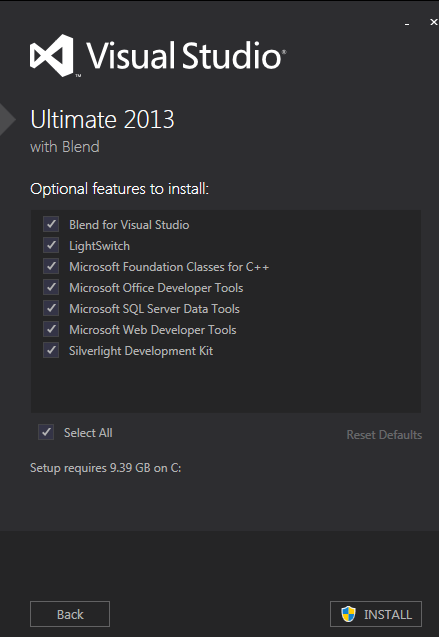
Today I downloaded it and when doing the install, I felt surprised to see the following screenshot. 


It means I can still install Visual Studio 2013 RTM without IE10. But some features might not work as expected. This time Visual Studio Team is listening to people’s voice.  I really appreciate their smart decision.

Just followed the instruction and the install was finished.


November 7, 2013

Fix the issue: Blank cells in Excel 2010 via Copy with Headers in SQL Server 2008 R2

In this Sprint, we have the important feature: Users uploads the Excel Spreadsheet in our Silverlight Application, 283 values will be saved in the new table in SQL Server 2008 R2 and the values will show up immediately in the Silverlight UI page.

Validating 283 values is really time-consuming. One basic test scenario is that I put the incremental values (1-283) in each cell first and then validate the values are showing up correctly in DB after the upload of spreadsheet.

Each field in the UI has the long business name so I use column aliases in the SQL script.

For example

Select
YR1_SALES_INV_RATIO as ' Market Year 1 Sales to Investment Ratio'     ,
From TableName

In order to validate the values correctly, I use Copy with Headers and paste the data to Excel spreadsheet. Here are the steps:

·         Select the data in SQL Server 2008 R2 and use Copy with Headers

·         Paste to the Excel Spreadsheet 2010

·         Transpose the data

One interesting issue happens after trying to compare the values.  Many header cells after the transpose are blank in Excel Spreadsheet.


I know I can use “Shift cells up” to remove the blank cells, but this is not the best solution because I need to remove them manually every time after doing copy/paste/transpose.


After looking into this interesting issue for a while, I finally find “column Aliases” are too long and Copy with Headers function can’t handle it well in Excel Spreadsheet, which causes the blank cells.  

After simplifying column aliases and try the steps above, the blank cells are going away.

October 29, 2013

Fix the issue- Missing Option of Connect to Outlook in SharePoint 2010 Team Calendar

Every time when I go to our Project Dashboard, the following JavaScript error appears in IE8.


When I click Team Calendar and try to sync SharePoint 2010 Team Calendar with MS Outlook 2010, the option of “Connect to Outlook” is missing.  It was working fine.  After talking to 2 team members, one has the same issue too, but the other one doesn't.


 After looking into this issue, I learn something as follows:

·         Running sfc /scannow is not useful at all.

·         I use Office 2010, so running Office Diagnostics is not useful because it is for Office 2007 only.

·         There is no owssupp.dll in Office 14 folder (C:\Program Files\Microsoft Office\Office14). We don’t need to register it in the machine.

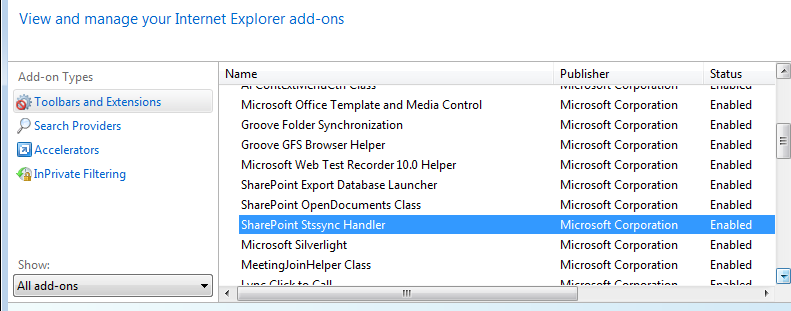
·         SharePoint Stssync Handler is required to appear in Manage Add-ons. It is missing in my IE. [Main Reason]

How to fix this issue?  It is pretty easy.

Go to Programs and Features-> Right Click Microsoft Office 2010-> Change->  Choose Repair.  

After that, the following issues are fixed.

JavaScript error goes away in Project Dashboard.

The option of “Connect to Outlook” appears in SharePoint 2010.

SharePoint Stssync Handler appears in Manage Add-ons


October 28, 2013

Using COLLATE Latin1_General_CS_AS can search the right data

Last Friday I found out an interesting issue. The data was not showing up in the Silverlight UI, but the data has the value in the table in SQL Server 2008 R2.

After investigating the issue with our product owner, also a GIS analyst, we finally found out it was the data load issue.

One of the ArcGIS domain values is “Unknown”.  When we do something in the Silverlight UI, the value of “Unknown” is saved in the table. But they used ‘unknown’ to do the data load, which causes the current issue in Silverlight UI.

In order to find out how many rows have “unknown” value, we use the following SQL command because adding COLLATE Latin1_General_CS_AS will not return any “Unknown” data.

select colum1
FROM table
where colum1 COLLATE Latin1_General_CS_AS = 'unknown'

The table has 10, 000+ rows with “unknown” value.  After updating the value from unknown to Unknown, the data is showing up in Silverlight UI perfectly. 

September 27, 2013

Fixed the issue in Oracle SQL Developer - The program can’t start because MSVCR71.dll is missing from your computer

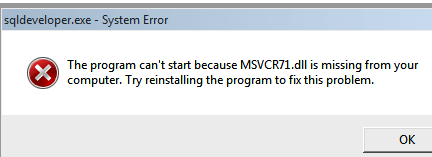
I am working on another project and haven’t touched Oracle SQL Developer for some months. Today when I double clicked sqldeveloper.exe and tried to open it, it showed the following error:

The program can’t start because MSVCR71.dll is missing from your computer. Try reinstalling the program to fix this problem.


After looking into this issue, it is easy to fix it.

Go to Registry Key (regedit)

Go to HKEY_LOCAL_MACHINE\SOFTWARE\Microsoft\Windows\CurrentVersion\App Paths\ sqldeveloper.exe

If you don’t see sqldeveloper.exe, create a new key.

Create a new string and then point to the file location - C:\RayLin\sqldeveloper-3.2.20.09.87\sqldeveloper\jdk\jre\bin


Double click sqldeveloper.exe again and you are all set.

September 20, 2013

WCF properties are not accessible at compiler time via C# dynamic type

Today I create a simple unit test to get some values from the table in SQL Server 2008 R2. This time I would like to use dynamic type in the code because the values from the table have different data types (int, string, and double). I don’t want to do casting and type conversion.

The interesting part is that when using dynamic type, WCF properties are not accessible, but when using var, they are accessible. That’s because with dynamic, it doesn’t know anything about properties at compiler time. It only knows them at run time.

If I would like to access properties directly, using var is a good idea, but it requires casting and type conversion.

If I don’t like to do casting and type conversion, using dynamic is a good idea, but properties are not accessible. I need to memorize the property names. That’s the trade-off.

Using dynamic is not useful in this unit test.